How to clear the cache and cookies in your chrome
Jump to navigation
Jump to search
Clearing the cache and cookies from a web browser is an important first-step for almost any troubleshooting for internet browsing. The 'cache' is a tool used by your internet browser to speed up the page loading process. However, sometimes it can cause a problem when websites are updated and developed as files saved in the cache may conflict with what's actually coded into the website. Clearing cache will ensure you are looking at the newest version of your website. It is recommended that this be performed once a week, at minimum.
Solution - Google Chrome
- 1.- Before you begin, close issabel and asternic tabs.
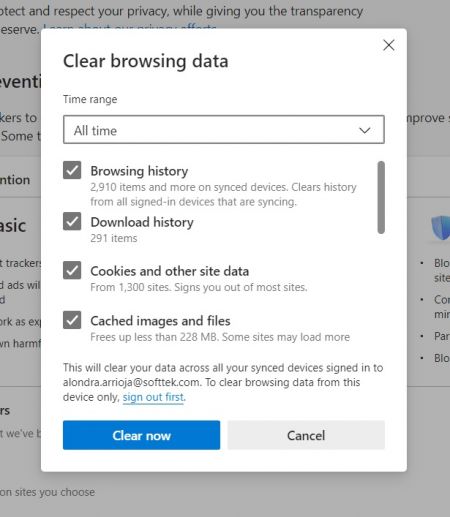
- 2.- While in your browser, press Ctrl + Shift + Delete simultaneously on the keyboard to open the appropriate window.
- 3.- Set the Time Range set to All Time. Check-mark Browsing history, Cookies and other site data, Cached images and files.
- 4.- Click on the Clear now button to proceed.
- 5.- If on a Windows computer, close and re-open Chrome to save your changes. If on an Apple computer, go to the Chrome menu on the top menu bar and select Quit for the changes to take effect.
IMPORTANT
Be sure and close/quit the browser and restart it after clearing the cache and cookies.