Agent Quick Start
Jump to navigation
Jump to search
This guide will highlight some of the key information and procedures regarding Issabel Call Manager. This guide will briefly review Logging in to Issabel, Ready/Not Ready Status, Answering an Inbound Call, Dispositioning a Call, and Logging Out.
Login
- Step 1
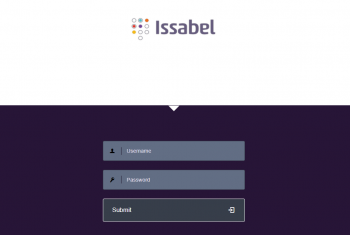
- Access the Issabel login page at Server URL ex. https://pbx1.callmanagerinfra.com and enter your username and password (received in an email).
- Step 2
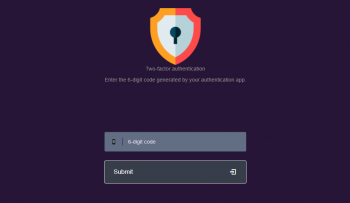
- An one-time password (OTP) is required as a second authentication factor. To get 6-digit (OTP) codes, add a new account in the Authenticator app of your choice; Microsoft Authenticator, Google Authenticator or Authy (with the account key received in an email).
- Step 3
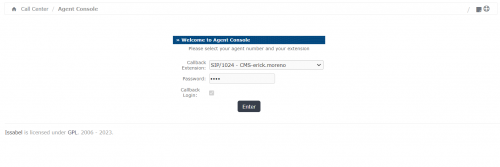
- Finally enter your extension number in the password field and click Enter button. Make sure that your extension number is selected in the "Callback Extension" drop-down and the "Callback" box is checked.
Answering an Inbound Call
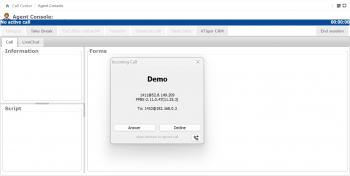
When you are in ready status and receive an incoming call, the Incoming Call pop-up will automatically open within this window, select "Answer" to connect the call and talk to the customer.
Dispositioning a Call
Once you have completed a call and finished taking action on a case, you will need to select a disposition reason within the form tab and click the Save Data button.
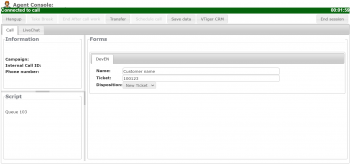
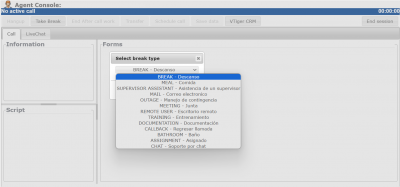
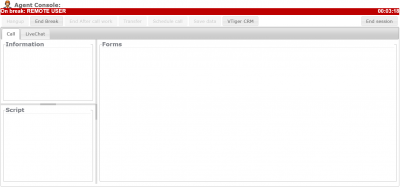
Ready/Not Ready Status
If you are unable to take another call, please be sure to select the appropriate not ready reason.
|
|
Important Notes
- Port TCP must be open on your network.
- Get a Chrome update when available.
- Don’t edit your account or do any changes in the settings if you are in a call because it will reload MicroSIP session.
- If MicroSip reloads the agent console´s session will finish.
- Internet connection via Ethernet is a valuable option – latency, interferences, speed, reliability and security.
- Clear your browsing data and history frequently or you can choice “clear cookies and site data when you close all windows” on Chrome settings. Clearing cache will ensure you are looking at the newest version of your website. It is recommended that this be performed once a week, at minimum.