Agent Quick Start: Difference between revisions
Jump to navigation
Jump to search
No edit summary |
|||
| Line 20: | Line 20: | ||
==Dispositioning a Call== | ==Dispositioning a Call== | ||
Once you have completed a call and finished taking action on a case, you will need to select a disposition reason within the form tab and click the | Once you have completed a call and finished taking action on a case, you will need to select a disposition reason within the form tab and click the Save Data button. | ||
:[[File:Agentconsole-4.png|350px|link=|caption]] | :[[File:Agentconsole-4.png|350px|link=|caption]] | ||
Revision as of 20:40, 6 November 2023
This guide will highlight some of the key information and procedures regarding Issabel Call Manager. This guide will briefly review Logging in to Issabel, Ready/Not Ready Status, Answering an Inbound Call, Dispositioning a Call, and Logging Out.
Login
- Step 1
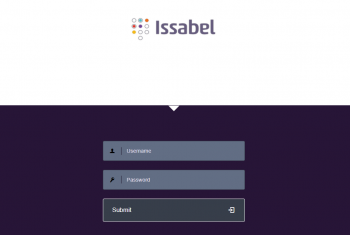
- Access the Issabel login page at Server URL ex. https://pbx1.callmanagerinfra.com and enter your username and password (received in an email).
- Step 2
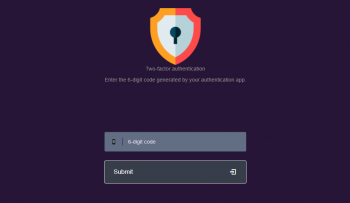
- An one-time password (OTP) is required as a second authentication factor. To get 6-digit (OTP) codes, add a new account in the Authenticator app of your choice; Microsoft Authenticator, Google Authenticator or Authy (with the account key received in an email).
- Step 3
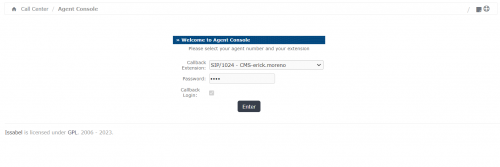
- Finally enter your extension number in the password field and click Enter button. Make sure that your extension number is selected in the "Callback Extension" drop-down and the "Callback" box is checked.
Answering an Inbound Call
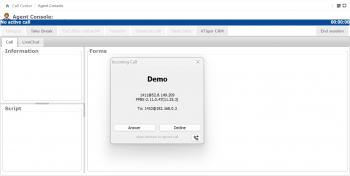
When you are in ready status and receive an incoming call, the Incoming Call pop-up will automatically open within this window, select "Answer" to connect the call and talk to the customer.
Dispositioning a Call
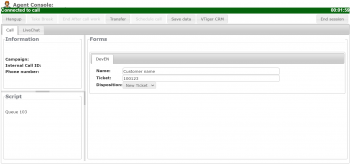
Once you have completed a call and finished taking action on a case, you will need to select a disposition reason within the form tab and click the Save Data button.