WebPhone: Difference between revisions
Jump to navigation
Jump to search
Cmseditors (talk | contribs) No edit summary |
Cmseditors (talk | contribs) No edit summary Tag: Manual revert |
||
| (13 intermediate revisions by the same user not shown) | |||
| Line 4: | Line 4: | ||
==Before to start== | ==Before to start== | ||
*Unistall MicroSip | *Unistall MicroSip (in case you have installed) | ||
*Clear the cache and cookies in your chrome | *Clear the cache and cookies in your chrome once a week, at minimum; Clearing cache will ensure you are looking at the newest version of your website. | ||
==How to Connect== | ==How to Connect== | ||
| Line 23: | Line 23: | ||
:3.- From the Microphone dropdown, choose “Allow” | :3.- From the Microphone dropdown, choose “Allow” | ||
;5.- Perform a sound test every time you connect via | ;5.- Perform a sound test every time you connect via webphone: | ||
:Dial the extension 100.¿Can you hear each sound? | :Dial the extension 100.¿Can you hear each sound? | ||
| Line 30: | Line 30: | ||
==If something goes wrong== | ==If something goes wrong== | ||
You can email our support team (itis.cmsupport@softtek.com). | You can email our support team (itis.cmsupport@softtek.com) providing: | ||
:Problem Description: Clearly describe the problem, its impact, and any relevant details. | |||
:Supporting Evidence: Include any data, screenshots, or other evidence that supports your description of the problem. | |||
[[Category:WebPhone]] | [[Category:WebPhone]] | ||
Latest revision as of 19:06, 23 December 2024
The call manager includes a webrtc based phone plugin so you can make and receive calls directly from your browser.
Before to start
- Unistall MicroSip (in case you have installed)
- Clear the cache and cookies in your chrome once a week, at minimum; Clearing cache will ensure you are looking at the newest version of your website.
How to Connect
- 1.- Issabel Portal Sign in
- 2.- Click on the orange bottom "Webphone"
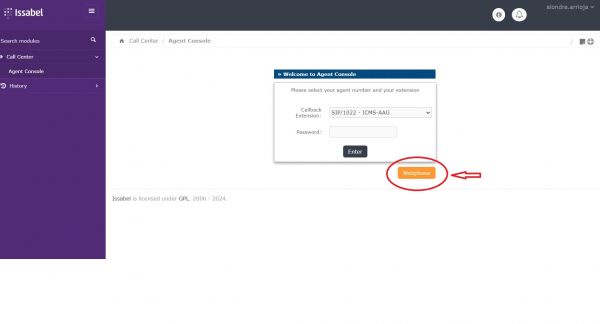
- 3.- It opens a new page in new window.
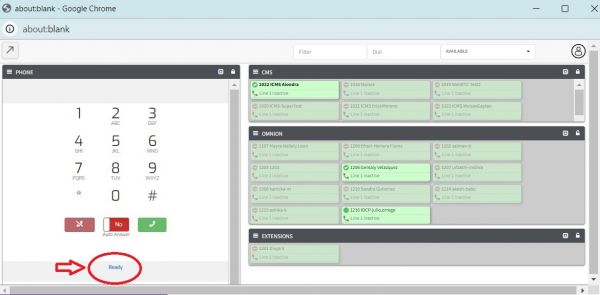
- 4.- Allow Microphone in your first webphone connection
- 1.- Click on the “View Site Information” icon next to the website URL.
- 2.- Select “Site Settings”.
- 3.- From the Microphone dropdown, choose “Allow”
- 5.- Perform a sound test every time you connect via webphone
- Dial the extension 100.¿Can you hear each sound?
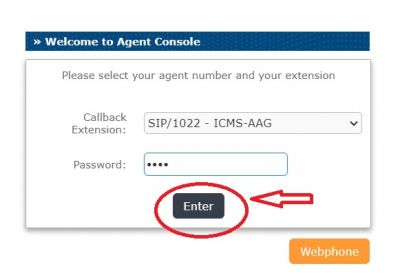
- 6.- After your phone's status changes to "Ready", you will need to log in to the agent console.
If something goes wrong
You can email our support team (itis.cmsupport@softtek.com) providing:
- Problem Description: Clearly describe the problem, its impact, and any relevant details.
- Supporting Evidence: Include any data, screenshots, or other evidence that supports your description of the problem.