WebPhone: Difference between revisions
Jump to navigation
Jump to search
Cmseditors (talk | contribs) No edit summary |
Cmseditors (talk | contribs) No edit summary |
||
| Line 8: | Line 8: | ||
;*Clear the cache and cookies in your chrome | ;*Clear the cache and cookies in your chrome | ||
==How to Connect== | ==How to Connect== | ||
| Line 24: | Line 17: | ||
;3.- It opens a new page in new window. | ;3.- It opens a new page in new window. | ||
:[[File:Webrtp-2.jpg|600px|link=|caption]] | :[[File:Webrtp-2.jpg|600px|link=|caption]] | ||
;* Allow Microphone in your first webphone connection | |||
:1.- Click on the “View Site Information” icon next to the website URL. | |||
:2.- Select “Site Settings”. | |||
:3.- From the Microphone dropdown, choose “Allow” | |||
;* Sound Test | |||
:Dial the extension 100.¿Can you hear each sound? | |||
Revision as of 14:51, 1 November 2024
The call manager includes a webrtc based phone plugin so you can make and receive calls directly from your browser.
Requirements
- Unistall MicroSip
- Clear the cache and cookies in your chrome
How to Connect
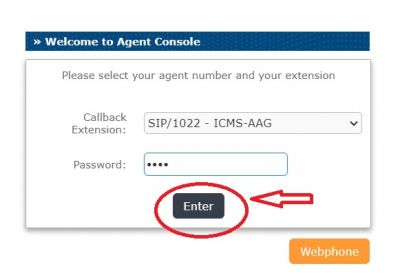
- 1.- Issabel Portal Sign in
- 2.- Click on the orange bottom "Webphone"
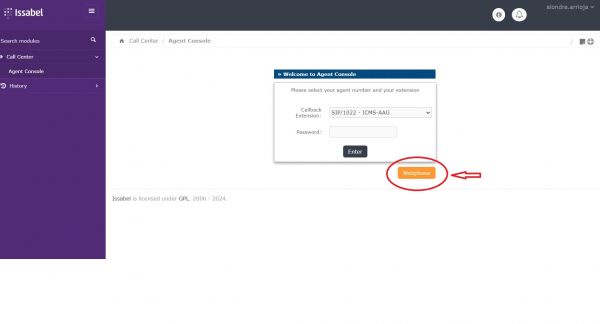
- 3.- It opens a new page in new window.
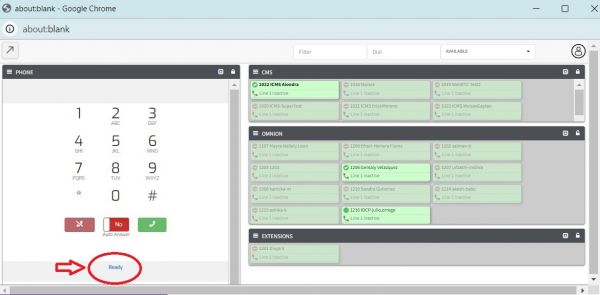
- Allow Microphone in your first webphone connection
- 1.- Click on the “View Site Information” icon next to the website URL.
- 2.- Select “Site Settings”.
- 3.- From the Microphone dropdown, choose “Allow”
- Sound Test
- Dial the extension 100.¿Can you hear each sound?
- 4.- After your phone's status changes to "Ready", you will need to log in to the agent console.