Agent Quick Start: Difference between revisions
Jump to navigation
Jump to search
No edit summary |
No edit summary |
||
| Line 3: | Line 3: | ||
==Login== | ==Login== | ||
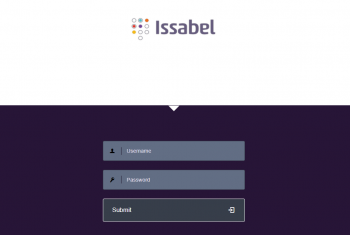
;Step 1: Access the Issabel login page at Server URL ex. https://pbx1.callmanagerinfra.com and enter your username and password (received in an email). | ;Step 1: Access the Issabel login page at Server URL ex. https://pbx1.callmanagerinfra.com and enter your username and password (received in an email). | ||
[[File:Issabel-1.png|350px|link=|caption]] | |||
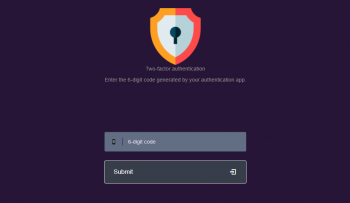
;Step 2: An one-time password (OTP) is required as a second authentication factor. To get 6-digit (OTP) codes, add a new account in the Authenticator app of your choice; Microsoft Authenticator, Google Authenticator or Authy (with the account key received in an email). | ;Step 2: An one-time password (OTP) is required as a second authentication factor. To get 6-digit (OTP) codes, add a new account in the Authenticator app of your choice; Microsoft Authenticator, Google Authenticator or Authy (with the account key received in an email). | ||
[[File:Issabel-2.png|350px|link=|caption]] | |||
[[Category:Issabel_User_Guide]] | [[Category:Issabel_User_Guide]] | ||
Revision as of 18:32, 3 November 2023
This guide will highlight some of the key information and procedures regarding Issabel Call Manager. This guide will briefly review Logging in to Issabel, Initial Setup, Ready/Not Ready States, Answering an Inbound Call, Dispositioning a Call, and Logging Out.
Login
- Step 1
- Access the Issabel login page at Server URL ex. https://pbx1.callmanagerinfra.com and enter your username and password (received in an email).
- Step 2
- An one-time password (OTP) is required as a second authentication factor. To get 6-digit (OTP) codes, add a new account in the Authenticator app of your choice; Microsoft Authenticator, Google Authenticator or Authy (with the account key received in an email).