Configuring my extension ( on iPhone ): Difference between revisions
Jump to navigation
Jump to search
Cmseditors (talk | contribs) No edit summary Tag: Reverted |
Cmseditors (talk | contribs) No edit summary Tag: Manual revert |
||
| Line 28: | Line 28: | ||
*Enter the ‘Domain’ | *Enter the ‘Domain’ | ||
*Enter the extension ‘User Name’ (Extension Number) and ‘Password’ (Pwd) which you may find via email | *Enter the extension ‘User Name’ (Extension Number) and ‘Password’ (Pwd) which you may find via email | ||
:[[File:Zoiper-setup-iphone.jpg|300px|link=|caption]] | |||
*Tap on ‘Register’ | *Tap on ‘Register’ | ||
*Go back to the dialler to make your call | *Go back to the dialler to make your call | ||
Revision as of 21:35, 23 February 2024
In order to connect to your telephone system, you will need to know:
- -Account type: SIP
- -Hostname: Ip address. It is often named domain or registrar.
- -The default SIP port: 5060.
- -Extension number: This is the username for your account.
- -Password: This is the password for your account.
Download ZoiPer
- Open the Apple ‘App Store’ on your phone
- Search for ‘Zoiper Lite voip soft phone’ in the App Store
- Install the app
Register your extension
- Go to My IP Upload module on Issabel and update your IP in the firewall
- Open the Zoiper app
- Allow the Zoiper permissions, tap ‘Allow’
- “Zoiper” Would Like to Send You Notifications – Tap ‘Allow’
- “Zoiper” Would Like to Access the Microphone – Tap ‘Allow’
- “Zoiper” Would Like to Access the Camera – Tap ‘Don´t Allow’
- “Zoiper” Would Like to Access Your Contacts- Tap ‘Don´t Allow’
- Tap settings (The ‘gear’ icon)
- Tap on ‘Accounts’
- Tap on the + and select ‘Yes’
- Select ‘Manual configuration’
- Select ‘SIP account’
- Enter the ‘Account name’ (Extension Number)
- Enter the ‘Domain’
- Enter the extension ‘User Name’ (Extension Number) and ‘Password’ (Pwd) which you may find via email
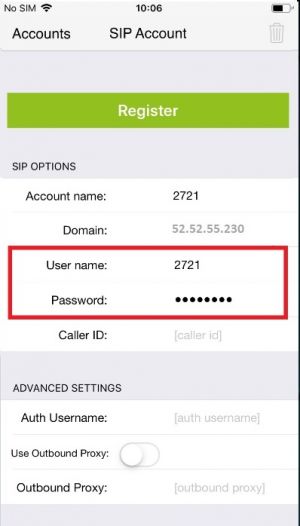
- Tap on ‘Register’
- Go back to the dialler to make your call
If your problem persist
Need help with your configuration?
If you are unable to complete the setup, contact us at itis.cmsupport@softtek.com. Please provide the following information to help us troubleshoot and resolve your case:
- Network Details: Your Public IPv4 address. You can find this by visiting https://checkip.amazonaws.com/.
- MicroSIP Configuration: Please provide screenshots of the following:
- Main Interface (the dialpad view).
- Settings Menu (Press Ctrl + P).
- Account Settings (Press Ctrl + M).
- Call Manager: A screenshot of the My IP Upload module.
- Issue Description: A brief summary of the error or specific behavior you are experiencing.