Queue Manager-Oncall: Difference between revisions
Jump to navigation
Jump to search
Cmseditors (talk | contribs) No edit summary |
Cmseditors (talk | contribs) No edit summary |
||
| Line 35: | Line 35: | ||
*'''Resource Order Management''' | *'''Resource Order Management''' | ||
: | :To change the sequence in which resources receive calls for L2 or On-Call service queues, use the side arrow buttons. This allows you to modify the ringing order for the assigned resources. | ||
:[[File:Queue manager img10.jpg|500px|link=|caption]] | :[[File:Queue manager img10.jpg|500px|link=|caption]] | ||
Revision as of 17:16, 9 December 2025
The Queue Management Module empowers project leaders with full control over the resources in each service desk on-call queue. Users can assign, unassign, and modify the associated telephone numbers to ensure up-to-date and accurate on-call rotation management.
Usage requirements
- Chrome browser.
- Call Manager account (Leader profile).
- Dial Patterns
Process
- Enter with the credentials of the Call Manager

- Click on the module "SD Queue Manager"

- A list with the queues belonging to the project will be displayed in the module. To edit agents assigned to an oncall queue, select the "Edit" option from the preferred queue.

- To begin, navigate inside the module and locate the "Cell phone number" option.
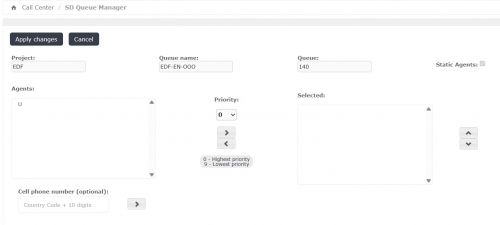
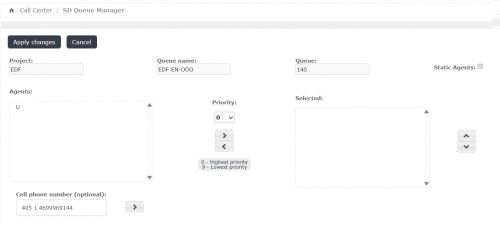
- Enter the telephone number, ensuring you follow the dial pattern (format) specified by the ITIS Call Manager team. Spaces are not permitted in this field.
- Click the right arrow button.
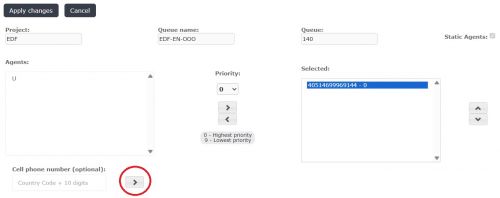
- Finally, click the "Apply changes" button to apply your changes.
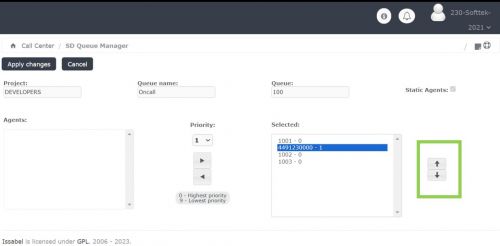
- Resource Order Management
- To change the sequence in which resources receive calls for L2 or On-Call service queues, use the side arrow buttons. This allows you to modify the ringing order for the assigned resources.