MicroSip Status: Request Timeout: Difference between revisions
Jump to navigation
Jump to search
Cmseditors (talk | contribs) (Created page with "Please use the My IP Upload module located within Issabel Call Manager.") |
Cmseditors (talk | contribs) No edit summary |
||
| (9 intermediate revisions by the same user not shown) | |||
| Line 1: | Line 1: | ||
When a server reaches timeout, it means that the server has not responded to the client’s request within the specified time limit. This can happen due to various reasons such as network congestion, server overload, or firewall problems. When the server times out, the client may retry the request, or it may terminate the connection. | |||
==Solution== | |||
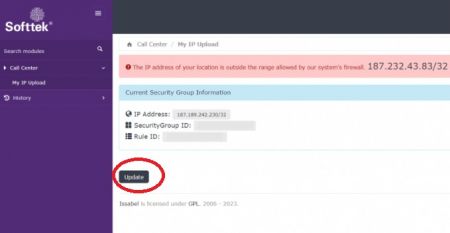
*Update your Public IP address on Issabel's firewall using the module "[[My IP Upload]]" located within Issabel Call Manager. | |||
:[[File:firewall-problems.jpg|450px|link=|caption]] | |||
*Make sure you have entered correct "SIP server", "username", "Domain", "Login", "password", "Media Encryption" and "Transport", go manual "[[MicroSIP_Setup]]". | |||
{{ContacUs}} | |||
[[Category:FAQ]] | |||
Latest revision as of 21:14, 11 January 2024
When a server reaches timeout, it means that the server has not responded to the client’s request within the specified time limit. This can happen due to various reasons such as network congestion, server overload, or firewall problems. When the server times out, the client may retry the request, or it may terminate the connection.
Solution
- Update your Public IP address on Issabel's firewall using the module "My IP Upload" located within Issabel Call Manager.
- Make sure you have entered correct "SIP server", "username", "Domain", "Login", "password", "Media Encryption" and "Transport", go manual "MicroSIP_Setup".
If your problem persist
Need help with your configuration?
If you are unable to complete the setup, contact us at itis.cmsupport@softtek.com. Please provide the following information to help us troubleshoot and resolve your case:
- Network Details: Your Public IPv4 address. You can find this by visiting https://checkip.amazonaws.com/.
- MicroSIP Configuration: Please provide screenshots of the following:
- Main Interface (the dialpad view).
- Settings Menu (Press Ctrl + P).
- Account Settings (Press Ctrl + M).
- Call Manager: A screenshot of the My IP Upload module.
- Issue Description: A brief summary of the error or specific behavior you are experiencing.