Queue Manager-Oncall: Difference between revisions
Jump to navigation
Jump to search
Cmseditors (talk | contribs) No edit summary |
Cmseditors (talk | contribs) No edit summary |
||
| (15 intermediate revisions by the same user not shown) | |||
| Line 1: | Line 1: | ||
The Queue Management Module empowers project leaders with full control over the resources in each service desk on-call queue. Users can assign, unassign, and modify the associated telephone numbers to ensure up-to-date and accurate on-call rotation management. | The Queue Management Module empowers project leaders with full control over the resources in each service desk on-call queue. Users can assign, unassign, and modify the associated telephone numbers to ensure up-to-date and accurate on-call rotation management. | ||
On-Call means being available to respond to urgent issues outside of your regular working hours. While you aren't 'at work,' you must be reachable by phone and ready to assist if a critical situation arises. Our system uses a priority list to ensure the right person is contacted first. | |||
==Usage requirements== | ==Usage requirements== | ||
| Line 15: | Line 17: | ||
*A list with the queues belonging to the project will be displayed in the module. To | *A list with the queues belonging to the project will be displayed in the module. To edit agents assigned to an oncall queue, select the "'''Edit'''" option from the preferred queue. | ||
:[[File:Queue manager img3.jpg|500px|link=|caption]] | :[[File:Queue manager img3.jpg|500px|link=|caption]] | ||
* | *To begin, navigate inside the module and locate the "Cell phone number" option. | ||
:[[File:SDQM-Oncall-1.jpg|500px|link=|caption]] | |||
:[[File: | |||
* | *Enter the telephone number, ensuring you follow the dial pattern (format) specified by the ITIS Call Manager team. Spaces are not permitted in this field. | ||
:[[File:SDQM-Oncall-2.jpg|500px|link=|caption]] | |||
:[[File: | |||
* | *Click the right arrow button. | ||
:[[File:SDQM-Oncall-3.jpg|500px|link=|caption]] | |||
:[[File: | |||
* | *Finally, click the "Apply changes" button to apply your changes. | ||
*'''Resource Order Management''' | |||
:To change the sequence in which resources receive calls for L2 or On-Call service queues, use the side arrow buttons. This allows you to modify the ringing order for the assigned resources. | |||
*''' | |||
: | |||
:[[File:Queue manager img10.jpg|500px|link=|caption]] | :[[File:Queue manager img10.jpg|500px|link=|caption]] | ||
[[Category:Issabel_User_Guide]] | [[Category:Issabel_User_Guide]] | ||
Latest revision as of 20:14, 18 December 2025
The Queue Management Module empowers project leaders with full control over the resources in each service desk on-call queue. Users can assign, unassign, and modify the associated telephone numbers to ensure up-to-date and accurate on-call rotation management.
On-Call means being available to respond to urgent issues outside of your regular working hours. While you aren't 'at work,' you must be reachable by phone and ready to assist if a critical situation arises. Our system uses a priority list to ensure the right person is contacted first.
Usage requirements
- Chrome browser.
- Call Manager account (Leader profile).
- Dial Patterns
Process
- Enter with the credentials of the Call Manager

- Click on the module "SD Queue Manager"

- A list with the queues belonging to the project will be displayed in the module. To edit agents assigned to an oncall queue, select the "Edit" option from the preferred queue.

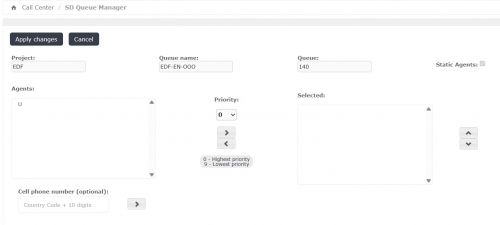
- To begin, navigate inside the module and locate the "Cell phone number" option.
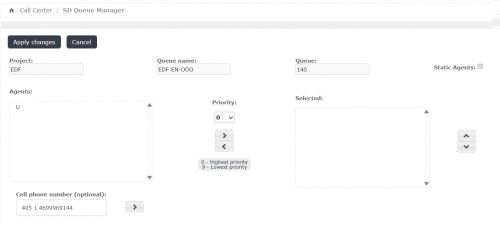
- Enter the telephone number, ensuring you follow the dial pattern (format) specified by the ITIS Call Manager team. Spaces are not permitted in this field.
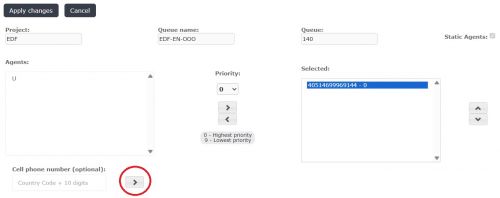
- Click the right arrow button.
- Finally, click the "Apply changes" button to apply your changes.
- Resource Order Management
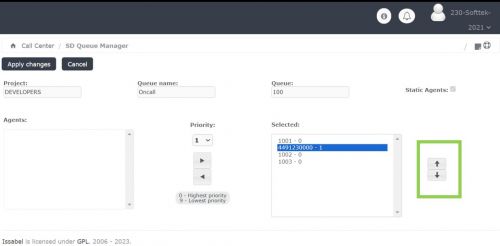
- To change the sequence in which resources receive calls for L2 or On-Call service queues, use the side arrow buttons. This allows you to modify the ringing order for the assigned resources.