Configuring my extension ( on Android ): Difference between revisions
Jump to navigation
Jump to search
Cmseditors (talk | contribs) No edit summary |
Cmseditors (talk | contribs) No edit summary |
||
| (21 intermediate revisions by 2 users not shown) | |||
| Line 1: | Line 1: | ||
In order to connect to your telephone system, you will need to know: | In order to connect to your telephone system, you will need to know: | ||
: | :'''-Account type:''' SIP | ||
: | :'''-Hostname:''' Ip address. It is often named domain or registrar. | ||
: | :'''-The default SIP port:''' 5060. | ||
: | :'''-Extension number:''' This is the username for your account. | ||
: | :'''-Password:''' This is the password for your account. | ||
==Download ZoiPer== | ==Download ZoiPer== | ||
| Line 17: | Line 17: | ||
==Register your extension== | ==Register your extension== | ||
*Go to [[My IP Upload]] module on Issabel and update your IP in the firewall | |||
*Enter the extension ‘Login ID’ (ExtensionNumber@domain) and | *Mobiles typically forces low-priority apps to go to sleep so that it doesn't drain your phone's battery. This ensures that your phone lasts longer. Still, it can get annoying if you miss an important notification because the app was set to sleep mode. Select Unrestricted Zoiper to allow the app to run with fewer limits while in the background. | ||
:[[File:Zoiper-setup.jpg| | *Now go back to the Zoiper APP | ||
*Enter the extension ‘Login ID’ (ExtensionNumber@domain) and ‘Password’ which you may find via email | |||
:[[File:Zoiper-setup.jpg|200px|link=|caption]] | |||
*Tap ‘Next’ | *Tap ‘Next’ | ||
*Tap ‘Skip’ | *Tap ‘Skip’ | ||
| Line 28: | Line 27: | ||
*The ‘SIP UDP’ test should be green the others are red | *The ‘SIP UDP’ test should be green the others are red | ||
*Tap ‘Finish’ | *Tap ‘Finish’ | ||
:[[File:Zoiper-ready.jpg|200px|link=|caption]] | |||
*Congratulations! You're ready to use your Zoiper. | |||
{{ContacUs}} | {{ContacUs}} | ||
[[Category:FAQ]] | [[Category:FAQ]] | ||
Latest revision as of 16:21, 24 September 2025
In order to connect to your telephone system, you will need to know:
- -Account type: SIP
- -Hostname: Ip address. It is often named domain or registrar.
- -The default SIP port: 5060.
- -Extension number: This is the username for your account.
- -Password: This is the password for your account.
Download ZoiPer
- Open the Google ‘Play Store’ on your phone
- Search for ‘ZoiPer IAX SIP VOIP Softphone’ in the Play Store
- Install the app
- Accept the ZoiPer terms and conditions, tap ‘Agree & Continue’
- You may read the terms and conditions by tapping on ‘General terms’
- Then tap ‘Skip’
Register your extension
- Go to My IP Upload module on Issabel and update your IP in the firewall
- Mobiles typically forces low-priority apps to go to sleep so that it doesn't drain your phone's battery. This ensures that your phone lasts longer. Still, it can get annoying if you miss an important notification because the app was set to sleep mode. Select Unrestricted Zoiper to allow the app to run with fewer limits while in the background.
- Now go back to the Zoiper APP
- Enter the extension ‘Login ID’ (ExtensionNumber@domain) and ‘Password’ which you may find via email
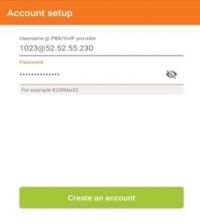
- Tap ‘Next’
- Tap ‘Skip’
- Wait until testing is completed
- The ‘SIP UDP’ test should be green the others are red
- Tap ‘Finish’
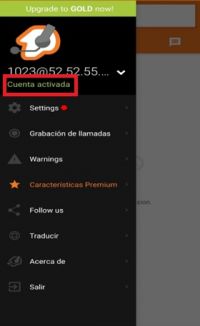
- Congratulations! You're ready to use your Zoiper.
If your problem persist
Need help with your configuration?
If you are unable to complete the setup, contact us at itis.cmsupport@softtek.com. Please provide the following information to help us troubleshoot and resolve your case:
- Network Details: Your Public IPv4 address. You can find this by visiting https://checkip.amazonaws.com/.
- MicroSIP Configuration: Please provide screenshots of the following:
- Main Interface (the dialpad view).
- Settings Menu (Press Ctrl + P).
- Account Settings (Press Ctrl + M).
- Call Manager: A screenshot of the My IP Upload module.
- Issue Description: A brief summary of the error or specific behavior you are experiencing.